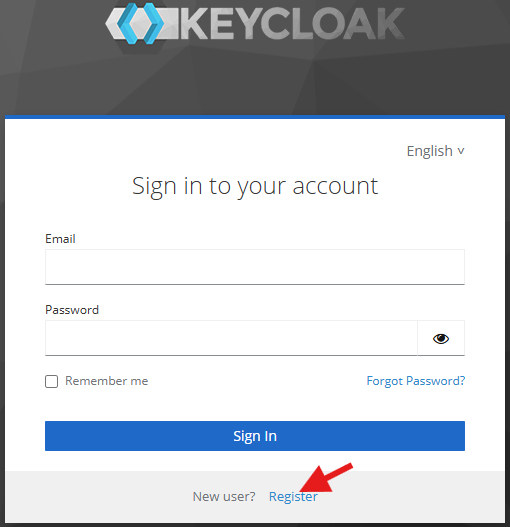
- To apply for GLOWACON membership, the first step is to RIGHT-click (or long press, on mobile) on the account form link (this action will open it in a separate browser page, so you can continue to follow the instructions on this page). In the new page, click on the Register button.
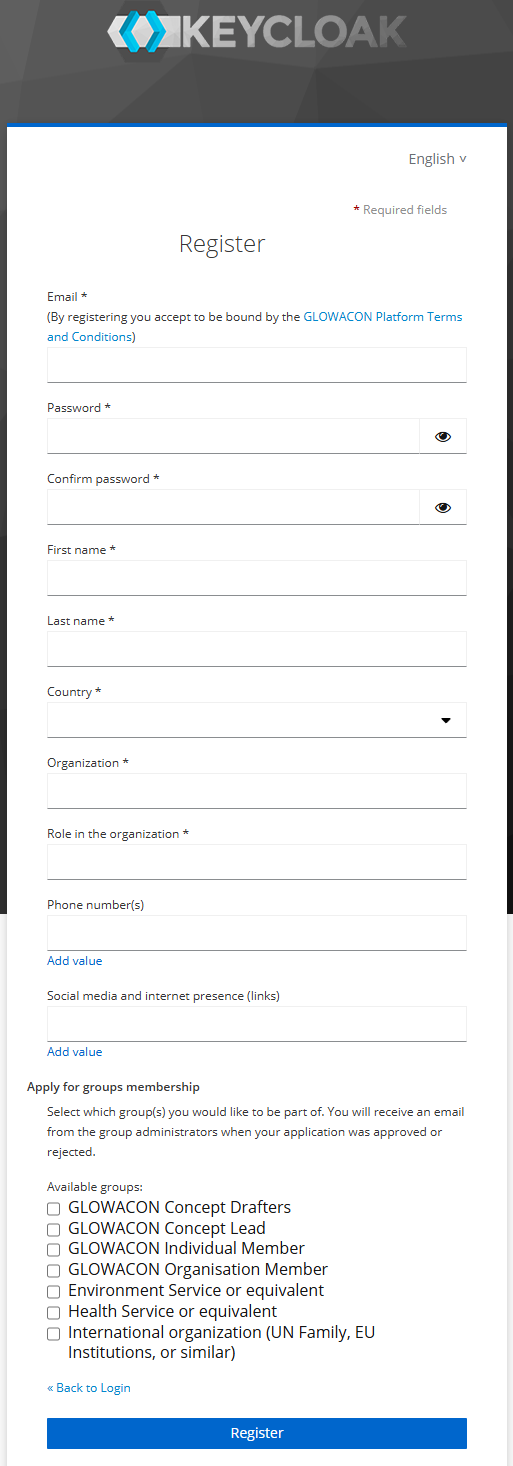
2. You will be taken to the registration form, where you need to fill in at least the mandatory fields marked with an * character and then click on the Register button at the end of the form.
By filling in this form you agree to be bound by the GLOWACON Platform Terms and Conditions.
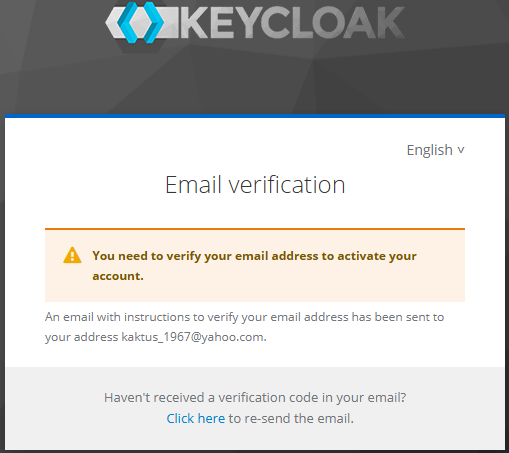
3. The next screen will inform you that you need to verify your email address.
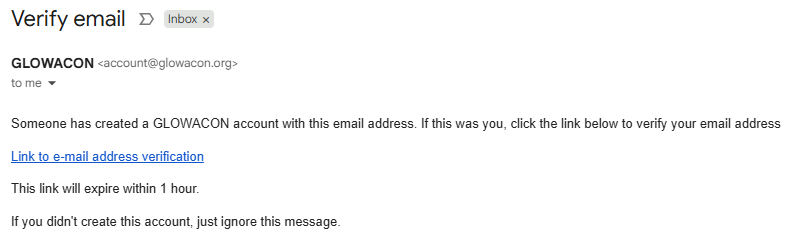
4. Open your email application and wait for a message like the one below. When received, click on the Link to e-mail address verification. Normally, you should receive this message within seconds but, if more than one minute passed and you haven't received it (please also check your Trash/Spam folders), click on Click here to re-send the email in the screen above.
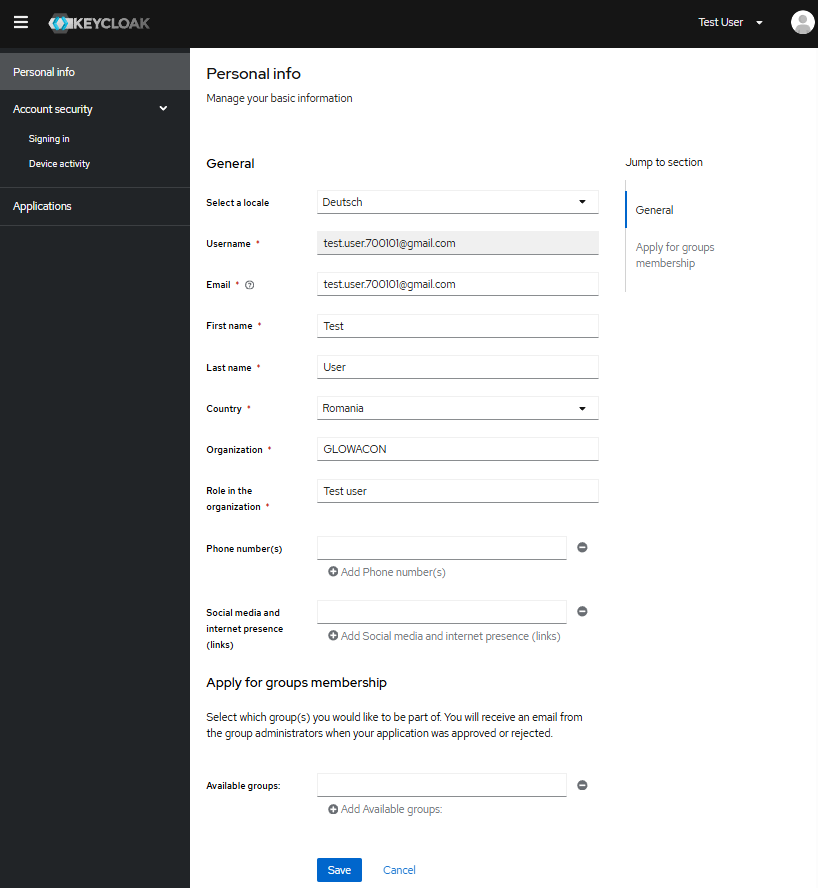
5. Once you click on the verification link, you will be taken to your account management system, where you can add or change some of the personal information you entered during the registration process. You can also change this information at any time by visiting https://login.glowacon.org/realms/glowacon/account/. Please be aware that even if you later change your email address, all the content that you create or touch in the GLOWACON platform will remain associated with the original email address with which you registered (the Username), and this cannot be edited.
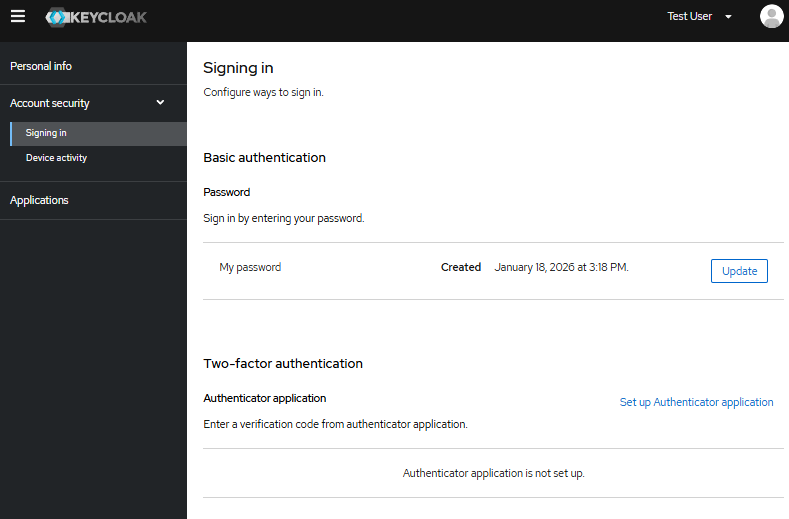
6. By selecting the “Signing in” option on the menu on the left, you can, at any time, change your password and/or, for increased security of your account, set up an Authenticator application (like Google or Microsoft Authenticator apps, available both on Android and iPhone) for Two-Factor Authentication (2FA).
You can now close this page
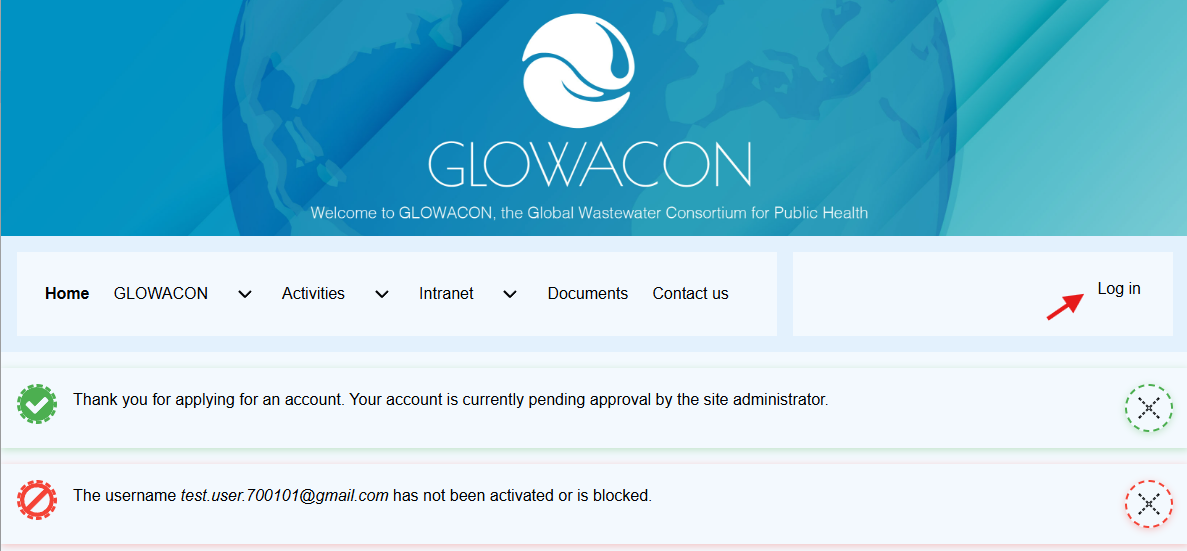
7. IMPORTANT!!! At this stage, go back to the Registration page or to https://glowacon.org and press the Log in button - you will get the messages below. This step is crucial, as it makes your newly registered account visible to the site administrator, so the administrator can activate your account.
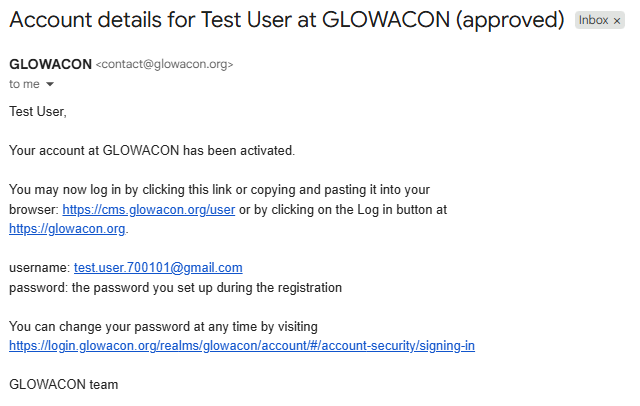
8. Wait for the site administrator to approve your registration. Monitor your email inbox for a message like the one below.
9. After logging in, your Log in button will be renamed to Log out.
10. After following these steps, you will be able to log in normally and enjoy all the site's features and content, including the non-public one (i.e. the new Community Hub).